How to Update a Minecraft Server
On this page
A new Minecraft version brings new blocks, mobs and fixes, and players soon ask when the server will have it. Updating takes a few minutes, but doing it in the wrong order can break plugins, mods or, in the worst case, the world.
This guide shows the safe order: what to check first, how to back up, how to update Vanilla, Paper and modded servers, and what to do if something goes wrong.
Before you update
- Check your plugins or mods. Look at each one's download page for the new Minecraft version. One missing plugin can stop the server from starting, or leave a feature broken.
- Check your server software. Paper, Fabric and NeoForge often need days or weeks after a Minecraft release before they have a stable build.
- Read the changelog for changes that affect your players: new world generation, removed features, changed commands.
- Pick a quiet time and tell players the server will be down for a few minutes.
There is no rush. Until you update, players can keep joining by choosing the server's version under Installations in the Minecraft Launcher.
Step 1: Back up everything
An update is a one-way door. Once a world has been opened in a newer version, it is converted to the new format, and an older version may refuse to load it or corrupt it. PaperMC puts it plainly in every release announcement: backups are mandatory, and after upgrading a world you cannot downgrade.
Back up at least:
- the world folder,
world, plusworld_netherandworld_the_endif your server keeps the Nether and the End in separate folders; - the
pluginsormodsfolder, with their configs; server.properties, the whitelist, ops and ban lists.
Stop the server first, so the world is fully saved, then make the backup. On a hosted server, use the panel's backup feature and, for extra safety, download a copy.
Step 2a: Update a Vanilla server
- Stop the server.
- Download the new
server.jarfrom the official Minecraft server download page. - Replace the old jar with it, keeping the same file name your start command uses.
- Check the Java version: Minecraft 26.x needs Java 25, 1.21 needs Java 21.
- Start the server and watch the console until it says
Done.
Step 2b: Update a Paper server
Paper releases builds in channels. For a new Minecraft version, the first builds are beta (experimental) and the download page hides them behind a switch. Today, for example, Paper's stable builds are for 26.2, while 26.3 is still in beta. Run beta builds only on a copy of your server, or once you have a fresh backup.
- Update the plugins first: download the versions for the new Minecraft release and put them in
plugins/update/. Paper swaps them in on the next start. - Stop the server, then replace the Paper jar with the new build. Never replace the jar while the server runs.
- Start it and read the log. Errors about a plugin usually mean it has no version for this release yet: remove it or wait.
Within a Minecraft version, keep Paper up to date too: new builds bring fixes, and Paper recommends updating at least once a week. How plugins are installed is in how to install Minecraft plugins.
Step 2c: Update a modded server
Modded servers are the hardest to update, because every mod has to exist for the new version:
- Fabric: update the loader and every mod, including Fabric API. A mod for one Minecraft version often does not load on the next.
- NeoForge and Forge: the loader version is tied to the Minecraft version, so a new Minecraft version means a new loader and new versions of all mods.
- Modpacks: wait for the pack's authors to release an update, and use their new server files. Do not mix mods from two pack versions.
Players must update their client mods to the same versions, or they cannot join. If a major mod in your pack has not been updated, stay on your current version; many modded servers skip Minecraft versions entirely. More in how to make a modded Minecraft server.
Update in a few clicks on HytHost
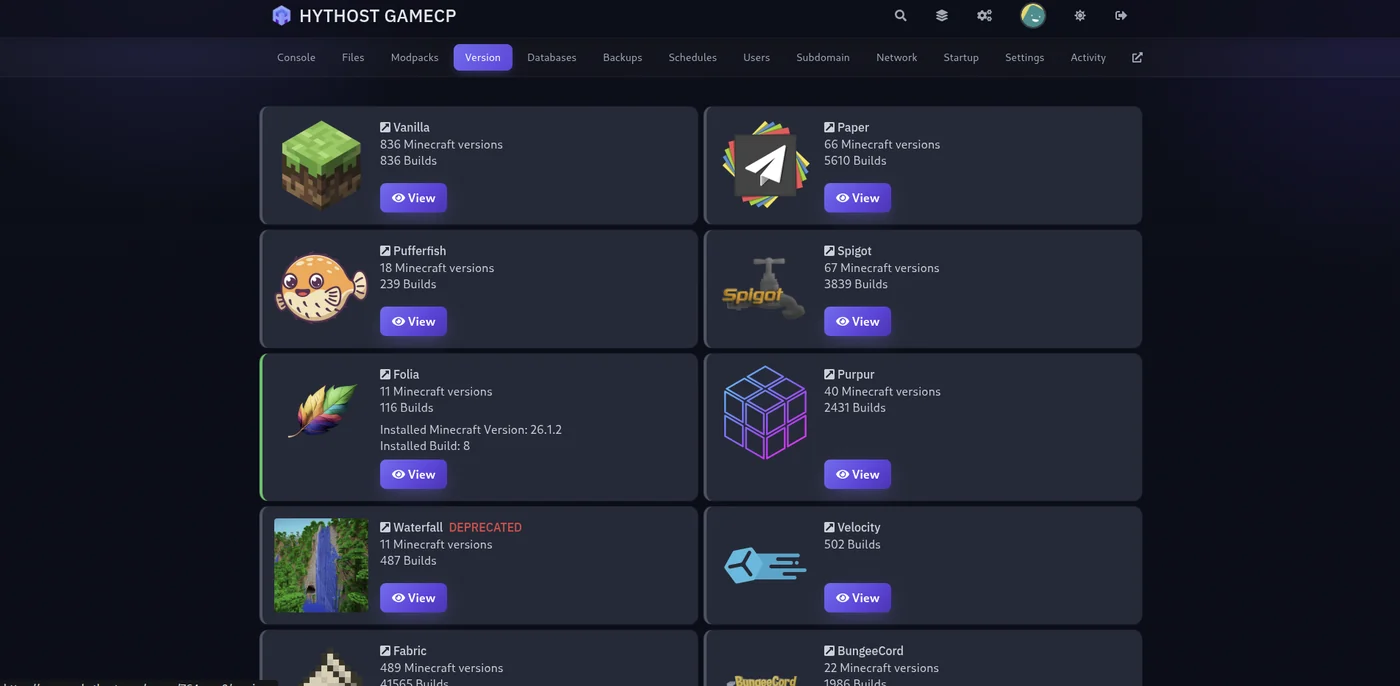
On HytHost Minecraft hosting, the panel's Version tab installs any server software and Minecraft version for you, and sets the matching Java version automatically.
- Make a backup in the Backups tab. The Version tab does not make one for you.
- Stop the server from the console, so the world is saved. The installer shuts the server down straight away, and anything not yet saved would be lost.
- Open Version, pick your software (Paper, Vanilla, Fabric, NeoForge and others), the Minecraft version and a build. Builds are marked stable or beta; snapshots stay hidden unless you turn them on.
- Leave Wipe Server Files off. With it off, only the server software is replaced; your world, plugins, mods and settings stay where they are.
- Install, start the server and watch the console.
Plugins and mods are not updated for you: replace them with versions for the new release, as described above.
Switch Minecraft versions and server software from the panel: HytHost Minecraft hosting starts at €2.59/mo.
See Minecraft plansIf something goes wrong: do not downgrade
If the new version causes problems, do not just install the old version over the updated world. Minecraft does not support downgrading a world, and the game itself warns that it may corrupt it. Nothing in a server panel stops you from doing it either.
Instead, restore the backup you made before the update, and install the old server version along with it. That is why the backup comes first.
Also leave the --forceUpgrade start option alone unless you have a specific reason. It converts every chunk at once, and after that the world no longer opens in older versions. Normally Minecraft upgrades chunks as players visit them, which is enough.
Frequently asked questions
No. Updating replaces the server software, not the world. The world is converted to the new format the first time it loads, which is why you should back it up first: after that, it cannot go back to an older version.
Not safely with the same world. Minecraft does not support opening a world in an older version than it was last saved in, and it can corrupt it. Restore the backup from before the update instead.
Their game version has to match the server's. Players on an older client need to update; on a modded server they also need the same mod versions as the server.
Wait for a stable build unless you want to test. The first builds for a new version are beta, and your plugins also need time to catch up.
Sometimes. Minecraft 26.x needs Java 25 and 1.21 needs Java 21. On a HytHost server the Version tab sets the right Java version automatically when you install.
Update without the hassle
HytHost Minecraft hosting switches versions and server software from the panel and picks the right Java for you, from €2.59/mo.
Live chat 8 AM – 11 PM (Chișinău time) · tickets answered during business hoursWas this guide helpful?

