How to Install Plugins on a Minecraft Server (Paper & Spigot)
On this page
Plugins are the fastest way to turn a plain survival world into a real server — ranks, land claims, homes, anti-grief and minigames. The best part on Paper and Spigot is that everything runs server-side: you install a plugin once, and your players join with an unmodified Minecraft client and download nothing.
This guide covers the whole job start to finish: where to get plugins safely, how to install one on a Minecraft server in a couple of minutes, the essential plugins most servers run, and how to update, remove and troubleshoot them when something refuses to load.
Plugins vs mods: what is the difference?
Before you download anything, make sure a plugin is really what you want. People use the words plugin and mod interchangeably, but on a server they are two completely different things.
| Plugins | Mods | |
|---|---|---|
| Runs on | Paper, Spigot, Purpur (Bukkit API) | Forge, Fabric, NeoForge |
| Players install anything? | No — server-side only | Yes — every player needs the same mods |
| Changes the game itself? | Rarely — adds features and rules | Yes — new blocks, mobs, dimensions |
| Typical use | Ranks, claims, minigames, anti-grief | Tech, magic and exploration modpacks |
Plugins hook into the Bukkit API that Paper and Spigot expose. They live entirely on the server, so your players connect with a stock Minecraft client and never download a file — that is exactly why plugin servers are so easy to run and grow.
Mods are a different world: they change the game client itself, so the server and every single player must run the same loader and the same mod list, usually shipped together as a modpack. If that is what you are after, this is the wrong guide — head to how to make a modded Minecraft server instead. For the full comparison of loaders and where each one fits, see best Minecraft server software.
Before you start: run Paper or Spigot
Plugins only load on a server that speaks the Bukkit API. The vanilla server.jar from Mojang does not — drop a plugin next to it and nothing happens. You need one of these:
- Paper — the standard choice. It is the fastest of the family, actively maintained, and compatible with the huge Bukkit/Spigot plugin ecosystem. Start here.
- Spigot — the older baseline most plugins still target and test against. Paper is a drop-in superset of it, so a plugin labelled "for Spigot" runs on Paper too.
- Purpur — a fork of Paper with extra gameplay toggles. Same plugins, a few more knobs.
If you are still on vanilla, switching is quick. On a HytHost Minecraft plan the GameCP panel has a built-in version changer: pick Paper (or Spigot/Purpur) and the Minecraft version, click once, and the correct build installs itself — your world is untouched. Self-hosting instead? Download the Paper jar and start it in place of the vanilla one. For help choosing between vanilla, Paper, Forge and Fabric, read best Minecraft server software; if you have not built a server yet, start with how to make a Minecraft server.
How to install a plugin, step by step
With Paper or Spigot running, installing a plugin is a handful of short steps. The whole thing takes a couple of minutes.
- Download the plugin JAR from a trusted source. The reputable homes for plugins are SpigotMC, Modrinth and Hangar (PaperMC). Download the
.jarfile, and confirm the page lists support for your Minecraft version — a plugin built for 1.20 will usually refuse to load on 1.21. - Upload it to the
pluginsfolder. Open the panel's Files tab, go into thepluginsdirectory, and upload the JAR — drag and drop works. Installing many at once? Connect over SFTP with the credentials in your panel and copy them straight intoplugins. Self-hosting? Thepluginsfolder sits next to yourserver.jar. - Restart the server. Plugins are only loaded at startup, so hit Restart in the panel — a plain reload will not pick up a brand-new plugin. Watch the console as it boots: each plugin announces itself as it enables.
- Verify it loaded. In the console command box, type
/plugins(or the short form/pl). Your new plugin should appear in the list, printed in green. Green means loaded and running; red means it failed — jump to troubleshooting if you see it. - Configure it. The first successful start creates
plugins/<PluginName>/config.yml. Edit that file in the file manager to tune the plugin, then run its reload command or restart. YAML is fussy about spacing — indent with spaces, never tabs, or the file will not parse.
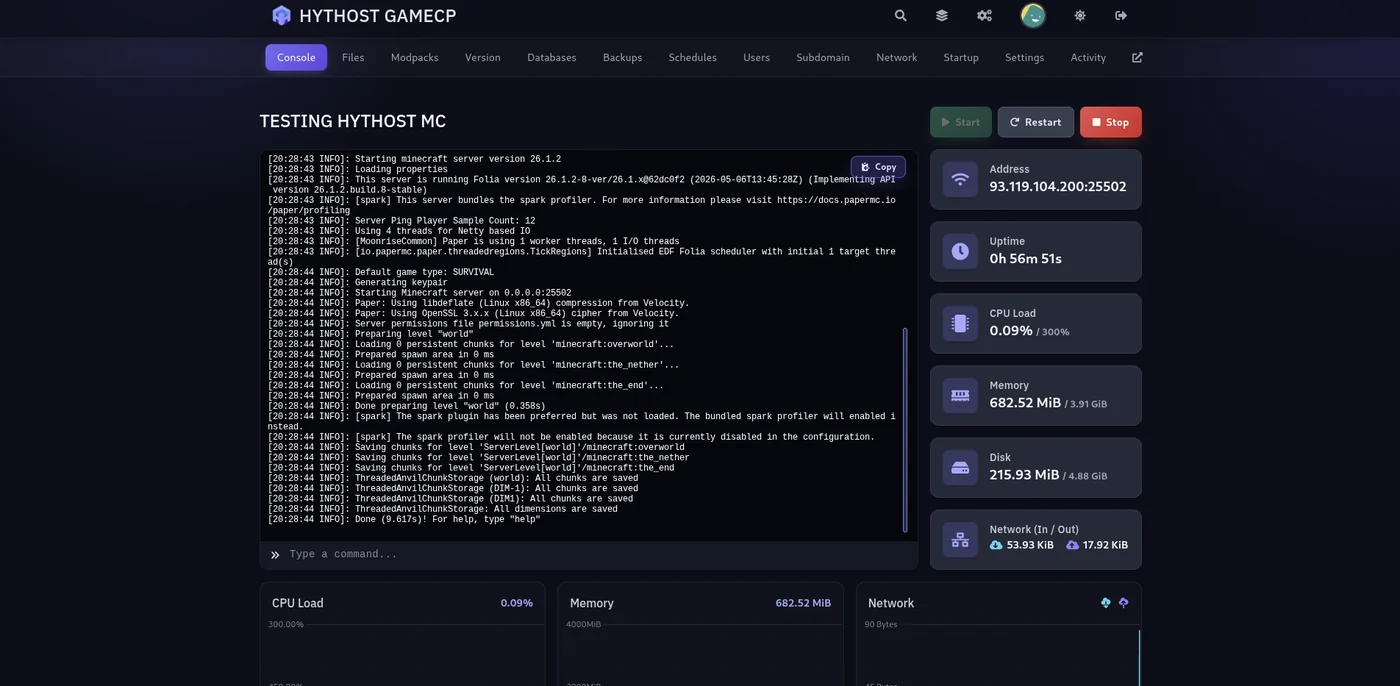
/plugins in the command box to confirm it loaded. The Files tab next door is where you drop the JAR into the plugins folder.Skip the guesswork — a HytHost Paper server gives you a file manager, SFTP and one-click backups to install plugins in minutes.
See Minecraft plansEssential plugins worth installing first
You could spend a weekend browsing plugins, but almost every well-run survival or SMP server is built on the same short list. Install these first:
- EssentialsX — the swiss-army knife:
/home,/spawn,/tpa, kits, warps, a starter economy and dozens of everyday commands. If you install one plugin, install this. - LuckPerms — the permissions manager. It decides who can run which commands and gives you ranks and groups. Most other plugins hook into it, so it is effectively required the moment you have more than one admin.
- WorldEdit + WorldGuard — WorldEdit lets you build and edit terrain fast; WorldGuard protects regions (spawn, shops, arenas) from grief and controls PvP zones. They come as a pair.
- Vault — a quiet bridge plugin that lets economy, permissions and chat plugins talk to one another. Several plugins list it as a dependency; install it and forget it.
- CoreProtect — block logging and rollback. When a griefer hits your spawn, CoreProtect shows exactly who did what and rolls it back in seconds. Install it before you need it.
A note on permissions: straight out of the box, most command plugins only respond to server operators. To let a normal rank use something like /home, you grant the matching permission node (here essentials.home) to their group in LuckPerms. This catches almost everyone once — when a command "does nothing" for a regular player, it is nearly always a missing permission, not a broken plugin.
Every plugin you add uses a little memory, so a busy plugin server needs more headroom than bare vanilla — plan for 4-6 GB on a Paper server running the essentials above. If you are not sure how much to give it, our guide on how much RAM a Minecraft server needs breaks it down by player count and setup.
Updating and removing plugins
Plugins are just files in one folder, which makes housekeeping simple.
Updating a plugin
Download the new version, delete the old JAR from the plugins folder (leave the plugin's config folder alone so your settings survive), upload the new JAR, and restart. Keeping plugins current matters: an outdated plugin is the usual culprit when a server breaks right after a Minecraft version bump, so update your plugins whenever you change your Minecraft version.
Removing a plugin
Restart or stop the server, delete the plugin's JAR from plugins, and it is gone on the next start. Its config folder under plugins/<PluginName> stays behind unless you delete that too — harmless to leave, but tidy to clear out if you are finished with the plugin for good.
Plugin not loading? How to fix it
When a plugin shows up red in /plugins or does nothing at all, the reason is almost always one of a few things. Work through them in order:
- Version mismatch. The number-one cause. Check the plugin page against your server's Minecraft version — a JAR built for 1.20 often will not enable on 1.21, and the reverse is just as true. Download the build that matches, or change your server version to match the plugin.
- A missing dependency. Many plugins need a helper installed alongside them — Vault for economy plugins, an economy plugin for a shop, a specific library. The console names it for you: look for a line like
Unknown/missing dependency plugins: [Vault]. Install what it asks for and restart. - Wrong server type. If nothing loads at all, confirm you are actually on Paper or Spigot and not vanilla — plugins need the Bukkit API. The version changer shows what you are running.
- A broken config. A single mis-indented line in
config.ymlcan stop a plugin dead. The console error usually points to the line and column. Fix the YAML (spaces, never tabs), or delete the config file and let the plugin regenerate a clean one on the next restart.
The console is your best friend here. Whatever failed, the server prints the reason at startup — a red ERROR or WARN line naming the plugin and the problem. Read it top to bottom; the first error is usually the real one.
Frequently asked questions
A plugin runs only on the server. On Paper, Spigot or Purpur it hooks into the Bukkit API, adds features like ranks and land claims, and your players join with an ordinary Minecraft client and download nothing. A mod changes the game itself, so the server and every player must run the same loader (Forge or Fabric) and the same mod list — see how to make a modded Minecraft server for that route.
In the plugins folder, which sits next to the server jar. Upload the plugin JAR there through the panel file manager or over SFTP, then restart the server — plugins are only loaded at startup, so a new JAR does nothing until you restart.
No. The vanilla server has no plugin support, so any JAR you drop in is simply ignored. You need Paper, Spigot or Purpur, which expose the Bukkit plugin API. Switching is one click in the GameCP version changer, and your world carries over — see best Minecraft server software for the comparison.
No, and that is the whole appeal of plugins. They run server-side only, so your players connect with an unmodified Minecraft client and download nothing extra. Needing every player to install matching files is what separates mods from plugins.
Almost always one of three things: the plugin was built for a different Minecraft version, a dependency it needs (often Vault) is missing, or the server is still vanilla instead of Paper or Spigot. The console prints the reason at startup — read that error first. The troubleshooting steps above walk through each case.
Yes, when you download from trusted sources like SpigotMC, Modrinth and Hangar. A plugin is code with full access to your server, so avoid cracked or reuploaded premium plugins, which are a common way malware is hidden. Take a one-click backup before adding a new plugin and you can always roll back if it misbehaves.
Ready to run a plugin server?
Launch a Paper server on HytHost, drop your plugins in from the panel, and you are online in minutes — file manager, SFTP, one-click backups and Voxility DDoS protection included. Bringing an existing world? Migration is free.
Live chat 8 AM – 11 PM (Chișinău time) · tickets answered during business hoursWas this guide helpful?

