How to Connect a Domain to a Minecraft Server
On this page
Handing friends a raw IP address like 203.0.113.10:25571 works, but it is ugly, easy to mistype, and it breaks the day your IP changes. A custom domain fixes all three: players join at play.yourname.com instead, and you can move the server behind the scenes without anyone re-typing anything.
There are two DNS records in play, and the difference between them is the whole reason people get stuck: an A record points a name at an IP but keeps the port, while an SRV record hides the port so players type just the domain. This guide covers both, step by step, plus how to test them and the easy shortcut if you would rather skip DNS entirely.
Why point a domain at your server?
Once your server is up — whether you followed our guide to making a Minecraft server or you rent one — the address is the last rough edge. A domain smooths it out in ways that matter more than they first appear:
- It is memorable.
play.yourname.comis something people can actually remember and share. An IP with a port on the end is not. - It survives IP changes. Home connections and some hosting plans hand out a new IP now and then. With a domain, you update one DNS record and every player keeps using the same address.
- It hides your real IP. With the right setup, players see the domain, not the machine behind it — useful when you would rather not publish your home IP address.
- It looks like a real community. A clean address is the difference between "some friend's server" and a place people take seriously.
What a domain does not do is change how the server runs — it is purely the address players type. You still size the machine the same way; if you are unsure, our RAM guide covers that.
A record vs SRV record: with and without the port
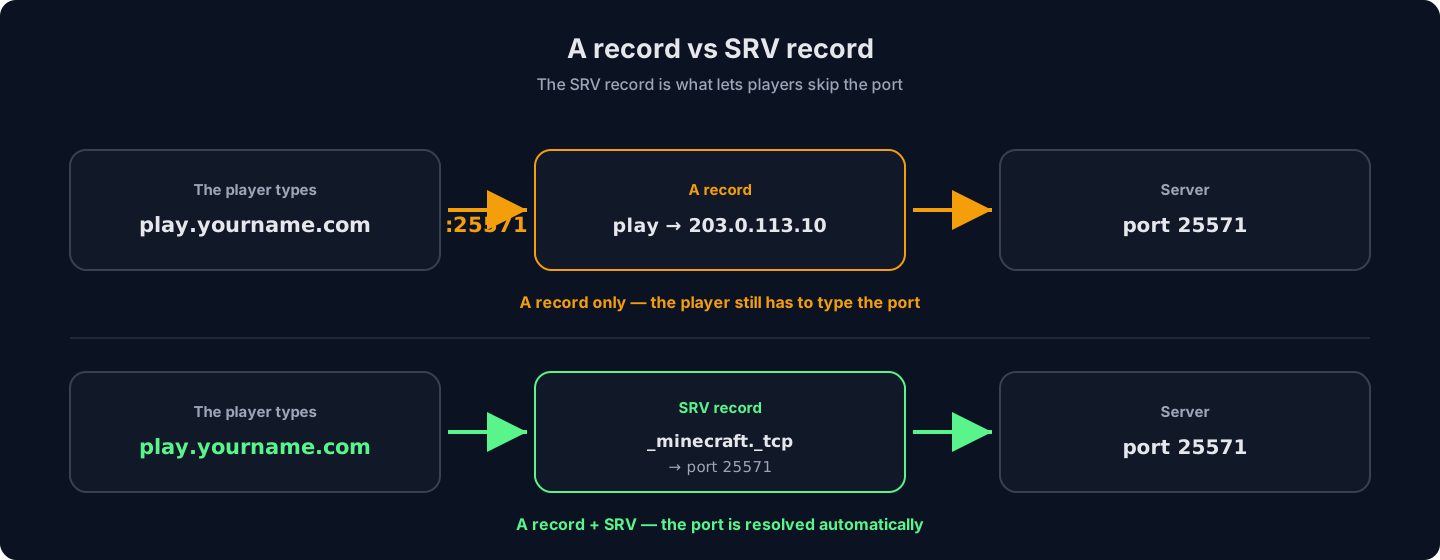
This is the part worth reading twice, because it decides whether your players ever have to type :25565 again.
An A record maps a name to an IP address and nothing more. When someone connects to play.yourname.com, Minecraft looks up the A record, gets the IP, and then tries the default port, 25565. So an A record alone is enough only if your server runs on 25565. Self-hosted servers usually do. Most rented servers do not — they share a machine and get a port like 25571, so players would still have to type play.yourname.com:25571.
An SRV record solves exactly that. It is a special DNS record that publishes the service, the protocol, and the port together, so the client learns which port to use on its own. Set one up and players type just play.yourname.com — no port, no matter what port the server actually runs on.
| Record | What players type | Use it when |
|---|---|---|
| A record only | play.yourname.com (works) or play.yourname.com:PORT | Your server runs on the default port 25565 |
| A record + SRV record | play.yourname.com | Your server runs on any non-default port (most rented servers) |
Step 1: Create the A record
The A record is the foundation — the SRV record points at it. You will do this at whoever manages your domain's DNS: your registrar, or a DNS provider like Cloudflare (free, and the example we use here). The fields are the same everywhere.
- Find your server's IP. Self-hosted and going public? It is your public IP (search "what is my IP"). On a rented server, the IP is on your panel's connection details.
- Open your DNS dashboard. Log into the provider that hosts the domain's DNS and open the DNS records page for your domain.
- Add an A record. Create a new record with these values:
Type:  A
Name:  play          (this becomes play.yourname.com)
Value: 203.0.113.10  (your server IP)
TTL:   Auto
Use@as the name if you want the bare domain (yourname.com) to point at the server instead of a subdomain. - Turn the proxy off. On Cloudflare, click the orange cloud next to the record so it turns grey ("DNS only"). The proxy is built for websites and will break a Minecraft connection — this is the single most common mistake.
- Save and wait a moment. DNS changes are usually live within a minute or two on modern providers, though they can take longer. Test by connecting to
play.yourname.comin Minecraft. If the server is on port 25565 you are already done; if it asks for a port, move on to the SRV record.
Step 2: Add the SRV record to drop the port
The SRV record tells Minecraft which port to use, so players never type it. It has more fields than an A record, but only two of them change per server: the port and the target.
| Field | Value | Notes |
|---|---|---|
| Type | SRV | |
| Service | _minecraft | Always this, with the underscore |
| Protocol | _tcp | Java uses TCP |
| Name | play | The subdomain players will type; @ for the bare domain |
| Priority | 0 | |
| Weight | 5 | |
| Port | 25571 | Your server's real port, from the panel |
| Target | play.yourname.com | The name that has the A record from Step 1 |
Some providers combine the last four into one "content" or "value" field. In that case the record looks like this, with the name set to _minecraft._tcp.play:
_minecraft._tcp.play SRV 0 5 25571 play.yourname.com
Read left to right, that is priority, weight, port, target. Save it, give it a minute, and reconnect using just play.yourname.com — no port.
Confirm it works with a quick lookup
Before you tell everyone the new address, check the record resolved. On any computer, open a terminal and run a SRV lookup — this asks DNS directly and shows you the port and target it will hand to Minecraft:
nslookup -type=srv _minecraft._tcp.play.yourname.com
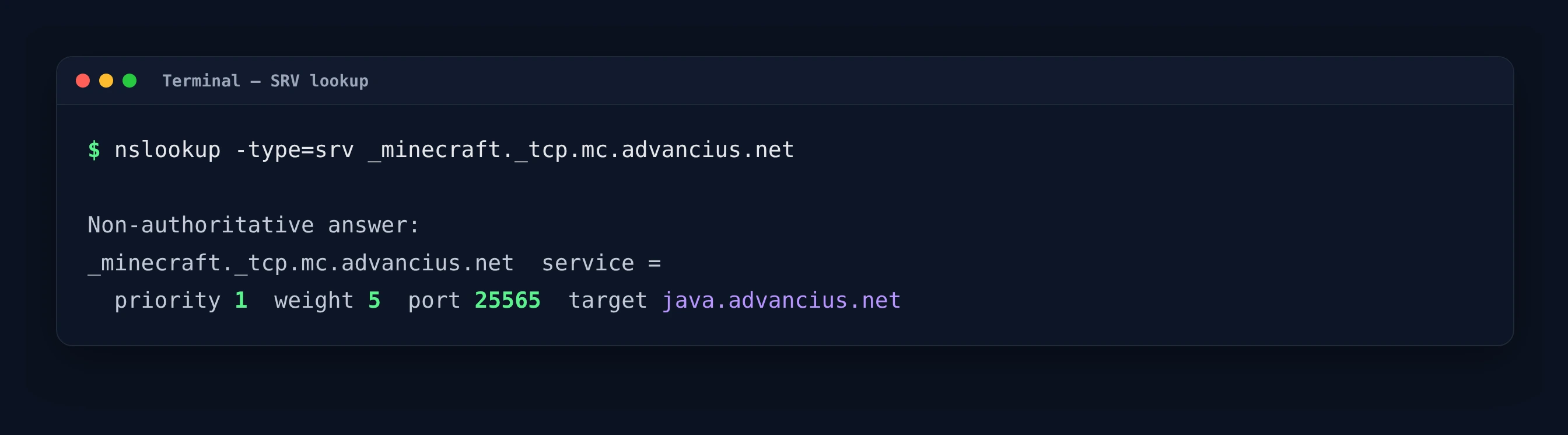
No answer? The record has not propagated yet, or the name is slightly off — double-check the _minecraft._tcp prefix and the target.
Skip the DNS setup — a HytHost Minecraft server comes with a free, ready-pointed subdomain and DDoS protection.
See Minecraft plansBedrock, and why it still asks for the port
Bedrock Edition is different. Bedrock servers use UDP port 19132, and the Bedrock client does not read the _minecraft._tcp SRV record that Java uses. You can still point an A record at the server so players type a domain, but Bedrock has a separate "Port" field on the Add Server screen where they enter the port — there is no SRV trick to hide it the way Java does. For how console and mobile players connect across platforms, see our Bedrock server guide.
If a Java connection still fails or still demands a port, it is almost always one of these:
- The SRV record has not propagated. Give it more time and re-run the
nslookupabove until it returns the port and target. - The Cloudflare proxy is on. The A record must be grey-cloud ("DNS only"). An orange cloud silently breaks the game connection.
- The port in the SRV record is wrong. It has to match the exact port your server listens on — copy it from the panel, do not guess.
- Target points at the wrong name. The SRV target must be a name that has an A record resolving to the IP — not the IP itself.
- You are testing an old cache. Fully restart the Minecraft client; it caches DNS for the session.
The shortcut: a free subdomain, already configured
If DNS records are not how you want to spend your evening, hosted plans make this a non-issue. On a HytHost Minecraft server you can get a free subdomain like play.yourname.hythost.com that is pointed at your server with the port already handled — players type it and connect, no A record, no SRV record, nothing to test.
Prefer your own domain? You can still use it. Point an A record at your server's IP as in Step 1, add the SRV record for the port, and you are set — and if you get stuck, live chat support is available 8 AM – 11 PM (Chișinău time) to walk through the records with you. Either way you also get Voxility DDoS protection in front of the address, so publishing it does not put a target on your connection.
Frequently asked questions
No. A server works perfectly well on its raw IP address and port — a domain is purely for convenience. It gives players a memorable address, keeps that address working if your IP changes, and lets you hide the port with an SRV record. If you are just playing with a few friends on the default port, the IP alone is fine.
Because you only added an A record, and your server runs on a port other than 25565. An A record points the name at the IP but leaves Minecraft to try the default port. To let players connect without typing the port, add an SRV record (_minecraft._tcp) that publishes your real port — the client then finds it automatically.
An A record maps a hostname to an IP address. An SRV record goes further and publishes the service, protocol and port for that hostname. For Minecraft you almost always create both: the A record so the name resolves to your server, and the SRV record so players do not have to type the port.
Usually a minute or two on modern DNS providers, occasionally longer while the change spreads across the internet. If a new record is not resolving, re-run nslookup -type=srv _minecraft._tcp.play.yourname.com every few minutes until it returns the port and target, and fully restart your Minecraft client so it is not using a cached lookup.
Partly. You can point an A record at a Bedrock server so players type a domain instead of an IP, but Bedrock uses UDP port 19132 and its client does not read the _minecraft._tcp SRV record, so there is no way to hide the port the way Java does — players enter it in the separate Port field. See our Bedrock guide for cross-play details.
You get a free subdomain — something like play.yourname.hythost.com — already pointed at your server with the port handled, so there is no DNS setup at all. You are also free to use your own domain instead: add the A and SRV records as shown above, and support can help if a record will not cooperate.
Want the clean address without the DNS homework?
A HytHost Minecraft server comes with a free subdomain that is pointed and port-handled out of the box — or bring your own domain and we will help you set the records. DDoS protection is included either way.
Live chat 8 AM – 11 PM (Chișinău time) · tickets answered during business hoursWas this guide helpful?

