How Much RAM Does a Minecraft Server Need?
On this page
The honest answer to "how much RAM does a Minecraft server need?" is it depends on two things: how many players you expect, and whether you run mods. A vanilla world for a few friends is happy on 2-3 GB; a heavy modpack for the same friends can want 16 GB or more.
This guide gives you a straight sizing chart, shows exactly how to allocate that RAM whether you self-host or rent a server, how to tell when you genuinely need more, and the one bottleneck more RAM will never fix.
What actually decides how much RAM you need
Two levers decide how much memory a Minecraft server wants. Everything else is noise next to them.
- Player count adds RAM gradually. Each connected player loads the chunks around them, so more players — and a higher
view-distance— mean more of the world held in memory at once. Going from 4 players to 20 is a real increase, but a manageable one. - Mods and plugins are the big lever, by a wide margin. Vanilla is light. A handful of Paper plugins adds a little. A modpack is a different category entirely: every mod loads its own code, items, blocks and world-generation into memory before a single player joins, which is why a 200-mod CurseForge pack can need several times the RAM of a vanilla server for the same player count.
That is the whole model: vanilla scales with players, modded scales with mods. A world's size and age nudge the number up too — a sprawling, years-old map with many loaded chunks costs more than a fresh one — but players and mods are what you size around. Keep one thing in the back of your mind as you read on: RAM is only one of the server's resources, and past a point it stops being the one that matters (more on that in why more RAM is not always the fix).
How much RAM a Minecraft server needs, by setup
Here is the sizing we build the plans around — the same numbers we would give a friend. "RAM to aim for" is what to allocate to the server itself, not your PC's total, which needs headroom on top (see how to allocate it).
| Setup | Players | RAM to aim for |
|---|---|---|
| Vanilla with friends | 2-6 | 2-3 GB |
| Small SMP with plugins (Paper) | 5-15 | 4-6 GB |
| Light modpacks or bigger plugin packs | 5-15 | 5-8 GB |
| Most CurseForge modpacks | 5-15 | 9-12 GB |
| Heavy packs (ATM, RLCraft) or big communities | 15+ | 16 GB+ |
-Xmx value if you self-host). It is far easier to add RAM than to notice you have been paying for GB you never use.Running a modpack and not sure which band you fall into? Both pack size and player count push you up the table — the modded Minecraft server guide breaks the loaders and pack sizes down in detail.
How to give your server that RAM
Knowing the number is half the job; the other half is actually handing that memory to the server. It works differently depending on where the server runs.
Self-hosted: the -Xmx and -Xms flags
When you launch the server jar yourself, two flags control its memory. -Xmx sets the maximum heap (the ceiling), and -Xms sets the starting heap. For Minecraft the common, well-tested advice is to set them equal, so the JVM grabs all its memory up front instead of resizing under load:
java -Xms4G -Xmx4G -jar server.jar nogui
That line starts a server with 4 GB. A few things that trip people up:
- Use 64-bit Java. 32-bit Java cannot address more than about 1.5 GB, so if
-Xmx4Grefuses to start, that is usually why. Any current Temurin or Java 25 build is 64-bit. - Never give the server all your RAM. Leave at least 1-2 GB for the operating system, and more if you also run the Minecraft client on the same PC — the game needs its own memory on top of the server's.
- Then tune with Aikar's flags. Once the basics work, the community-standard "Aikar's flags" retune Java's G1 garbage collector for Minecraft's memory pattern, trading a sliver of RAM for noticeably steadier ticks. They are the standard next step past a bare
-Xmx/-Xms. The full self-host walkthrough — jar, EULA, port forwarding and all — is in How to Make a Minecraft Server.
Hosted: pick a size, upgrade in place
On a managed server there are no flags to edit. You choose the RAM with a slider when you order, and the plan is provisioned at that size — the startup flags (Aikar's included) are already tuned for you.
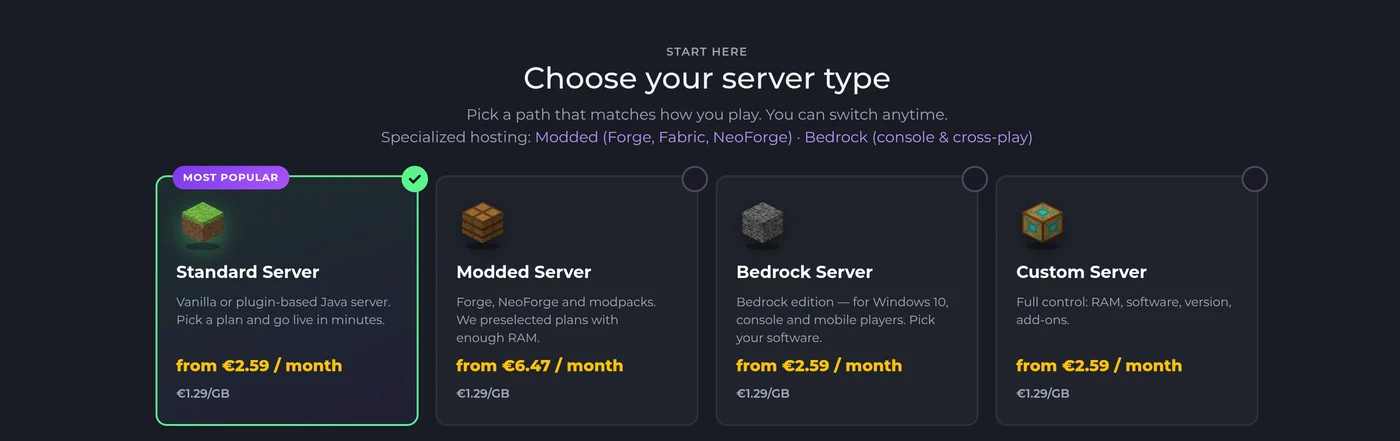
The real advantage shows when you outgrow your first guess: on the Minecraft hosting page you move the slider up and the extra RAM applies to the same server, world and settings intact — no reinstall, no migration, done in about a minute. That is exactly why the rule of thumb above is "start small": on a hosted plan, adding RAM later costs nothing but a minute.
Not sure which size to pick? A HytHost Minecraft plan lets you set RAM with a slider and upgrade in place in minutes — start small and grow.
See Minecraft plansSigns your server needs more RAM
You do not have to guess whether your server is starved. It tells you, in a few recognisable ways:
- Ticks fall behind. The console prints
Can't keep up! Is the server overloaded? Running Xms behind, skipping Xs tick(s), and in-game that shows up as rubber-banding, mobs freezing, and blocks taking a moment to break. - Saving the world stutters. A brief freeze every few minutes, lining up with the autosave, often means the server is fighting for memory.
- It crashes outright. The clearest signal of all is a crash whose log contains
java.lang.OutOfMemoryError: Java heap space— the server asked for more memory than its-Xmxceiling allowed.
OutOfMemoryError crash genuinely means you are out of memory — raise the size. But "Can't keep up" lag on its own does not prove a RAM problem: a server with plenty of free memory can still lag because a single CPU core is maxed out. Find out where the bottleneck actually is before assuming more GB is the answer.To see which it is, the free spark profiler (run /spark health or /spark profiler) shows tick timings and memory use, and a hosted panel plots live RAM on a graph. If memory sits pinned near the ceiling, size up. If memory has room but ticks still lag, read the next section first.
Why more RAM is not always the fix
This is the part most sizing advice leaves out. Minecraft runs the main game loop — the "tick" that moves mobs, grows crops and processes redstone — largely on a single CPU thread. Memory holds the world; one core does the thinking. Once the server has enough RAM to hold everything, adding more does not make that core any faster.
Two consequences are worth internalising:
- If ticks lag while RAM has headroom, the bottleneck is the CPU, not memory. Throwing 32 GB at a server pinned on one core changes nothing. This is the single most common sizing mistake people make.
- Too much RAM can even hurt. A very large heap gives Java's garbage collector more to sweep at once, which can turn into longer pause-stutters — one more reason the "start smaller" rule holds.
What actually moves the needle when the CPU is the limit is a high clock speed. That is why HytHost runs Minecraft on high-clock Ryzen and Intel i9 CPUs rather than many slow cores — Minecraft cares about how fast one core is, not how many there are. On the software side you can lighten that core's load by lowering view-distance and simulation-distance, pre-generating your world's chunks, running Paper instead of vanilla, or adding performance mods like Lithium on a modded setup. RAM gets your world loaded; the CPU and your software choices decide how smoothly it runs.
Frequently asked questions
For a vanilla server with a few friends, 2-3 GB is plenty. Plan 4-6 GB for a plugin server on Paper, 9-12 GB for most CurseForge modpacks, and 16 GB or more for heavy packs like All the Mods or RLCraft. The full breakdown by setup is in the sizing chart above.
For vanilla, or a small Paper server with a few plugins and up to roughly 10-15 players, yes — 4 GB is comfortable. Where 4 GB falls short is modpacks: most CurseForge packs want 9-12 GB, and a heavy pack will crash with an out-of-memory error long before it finishes loading on 4 GB.
Budget 5-8 GB for a light pack, 9-12 GB for most CurseForge modpacks, and 16 GB or more for heavy kitchen-sink packs like All the Mods or RLCraft. Mods, not players, drive the number. See the modded Minecraft guide or the pre-sized plans on the modded Minecraft hosting page.
Only if the server was short on memory to begin with. Once it has enough RAM to hold the world, adding more does nothing for speed — Minecraft is limited by single-core CPU speed, not memory, so lag on a server that still has free RAM is a CPU problem. There is more on this in why more RAM is not always the fix.
Leave the operating system at least 1-2 GB, and if you also play Minecraft on the same machine, reserve a few GB for the game client on top of the server's share. As a rule, do not allocate more than about two-thirds of your total RAM to the server, and always use 64-bit Java so the allocation is even allowed.
Yes. Self-hosted, you just raise the -Xmx value and restart. On a hosted plan you move the RAM slider up on the Minecraft hosting page and the change applies to the same server in place — world, plugins and settings untouched, no reinstall. That is exactly why we suggest starting one size small.
Not sure which size to pick?
Set the RAM with a slider, start one size small, and upgrade in place in minutes as your community grows — on high-clock CPUs built for Minecraft, with one-click backups and DDoS protection included.
Live chat 8 AM – 11 PM (Chișinău time) · tickets answered during business hours
